Author: BruceBlue
A netizen asked me why I chose MiniMax. The reason is simple: large volume, unlimited use, and decent results!
Then I looked at my quota… I can’t even use it all (I bought the Max Coding Plan)! I also subscribed to Claude quotas in Cursor and Gemini (Antigravity), but they’re just sitting idle. I couldn’t accept that: why not include Claude Code, this ultimate terminal tool, and get it for free too?
I only do this because I don’t want to buy Claude Pro. Opus 4.6 consumes tokens too quickly—$500 a month isn’t enough—and it’s not very friendly to users in China. MiniMax M2.5 is super fast, cost-effective, and just the right replacement!
I’ve tried all the tutorials online, but they mostly don’t work. So I decided to write a complete guide from scratch, especially for those who don’t want to buy Claude Pro and just want to use MiniMax. Compatible with Mac and Windows, it takes just a few minutes to set up!
Why bother with this (Benefits of connecting Claude Code to MiniMax API)
Purely for obsessive-compulsive users + freebie lovers:
No need to buy Claude Pro! Save money
- Official Claude Pro costs at least $19/month with token limits. We use the surplus MiniMax API, bypass login and subscription, with zero marginal cost.
Maximize your MiniMax quota
- Bought Coding Plan but can’t use it all? Just dump everything into Claude Code—no waste, no extra cost!
Faster, more stable, no lag
- MiniMax M2.5 responds faster than official Opus, no more worries about network issues or “model not found” errors.
Ultimate terminal experience
- Run commands directly in your project folder, with context auto-loading the entire directory—10x better than web version! Perfect for coding, debugging, building small tools.
Explosive capabilities, unbeatable cost-performance
- M2.5 in Claude Code easily beats Opus 4.6—great for automation scripts, small tools, web crawlers.
Switch back to official Claude anytime
- Just type /model to switch back to official (if you buy Pro later). Very flexible.
In short: free, money-saving, fast, and easy to use—this is the real “battle of wits” victory!
Setup: How to open terminal on different systems
Since many are new to terminal, I’ll teach the most basic operations so even beginners can follow!
Mac users (easiest):
- Press Cmd + Space to open Spotlight Search
- Type “Terminal” or “终端”
- Hit Enter to open the black window (Terminal!)
Windows users (recommended PowerShell):
- Press Win key
- Type “PowerShell”
- Right-click “Windows PowerShell” → Run as administrator (important! needed for installation) (or just search “Terminal” to open the new Windows Terminal)
Linux / WSL users:
- Just open “Terminal” or press Ctrl+Alt+T.
Step 1: Install Claude Code (no Claude Pro needed!)
Important reminder: since we’ll fully proxy with MiniMax later, installing Claude Code doesn’t require a Claude Pro subscription. That’s the point of this setup!
Recommended installation method (latest official way in 2026, no Node.js needed, more stable):
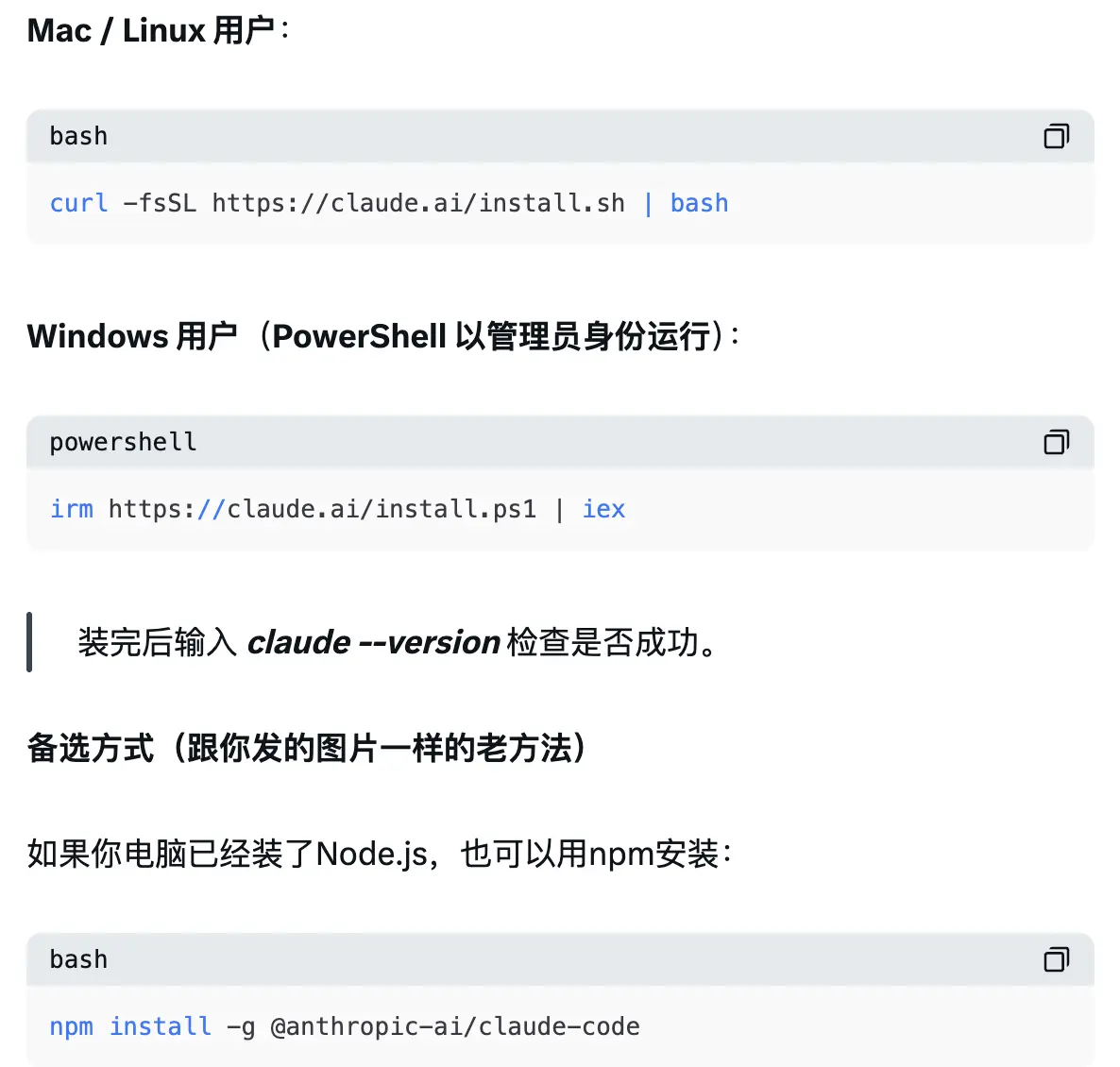
(Note: npm method is deprecated officially, but still works for now)
Step 2: Get MiniMax API Key
Log in to MiniMax API Platform → Subscribe to Coding Plan on the left → Choose a plan and purchase → Create a new Key and record it (needed below)
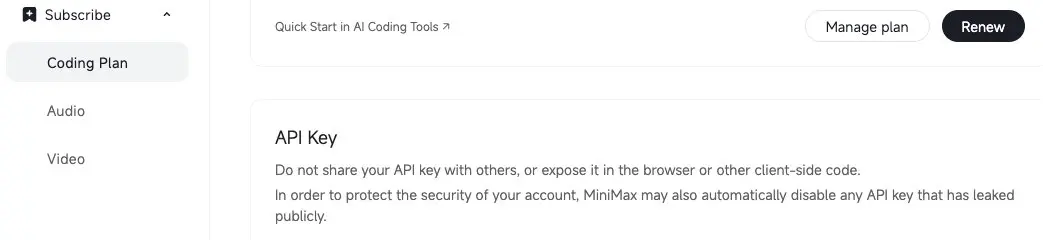
PS: If there’s a free MiniMax API, that’s also fine.
Step 3: Create configuration file (the most critical step! tricks to skip login)
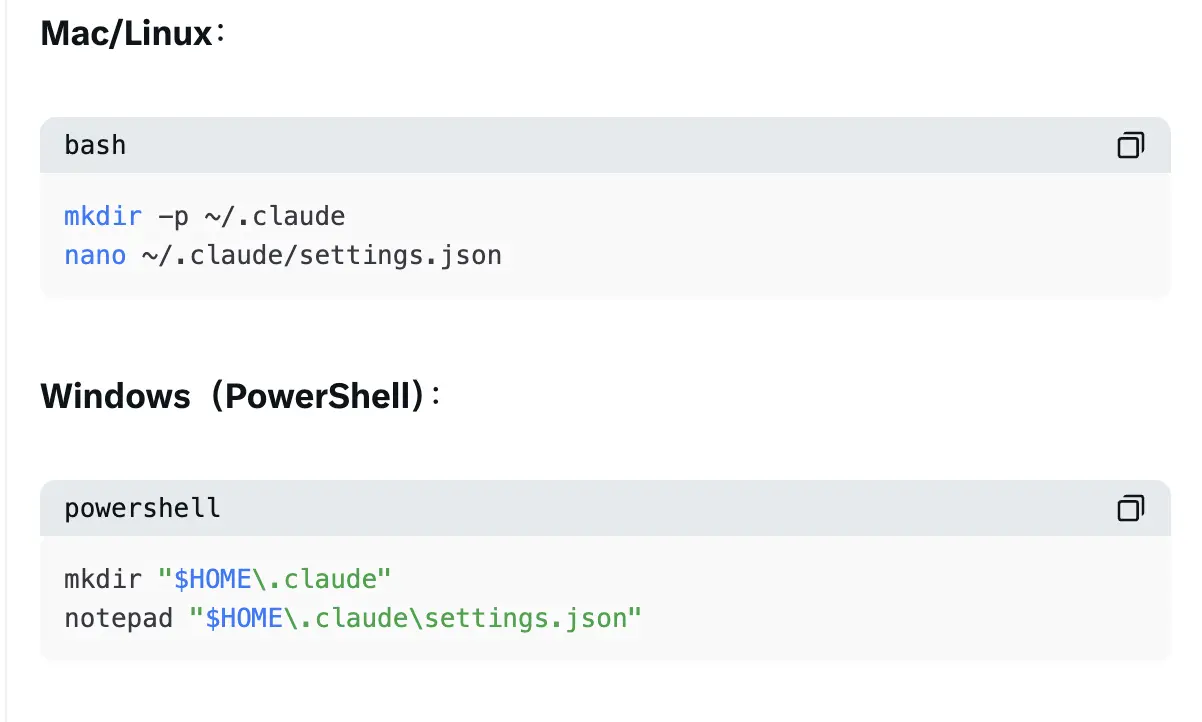
Copy the following content entirely (replace <你的MiniMax_Key> with your actual key):
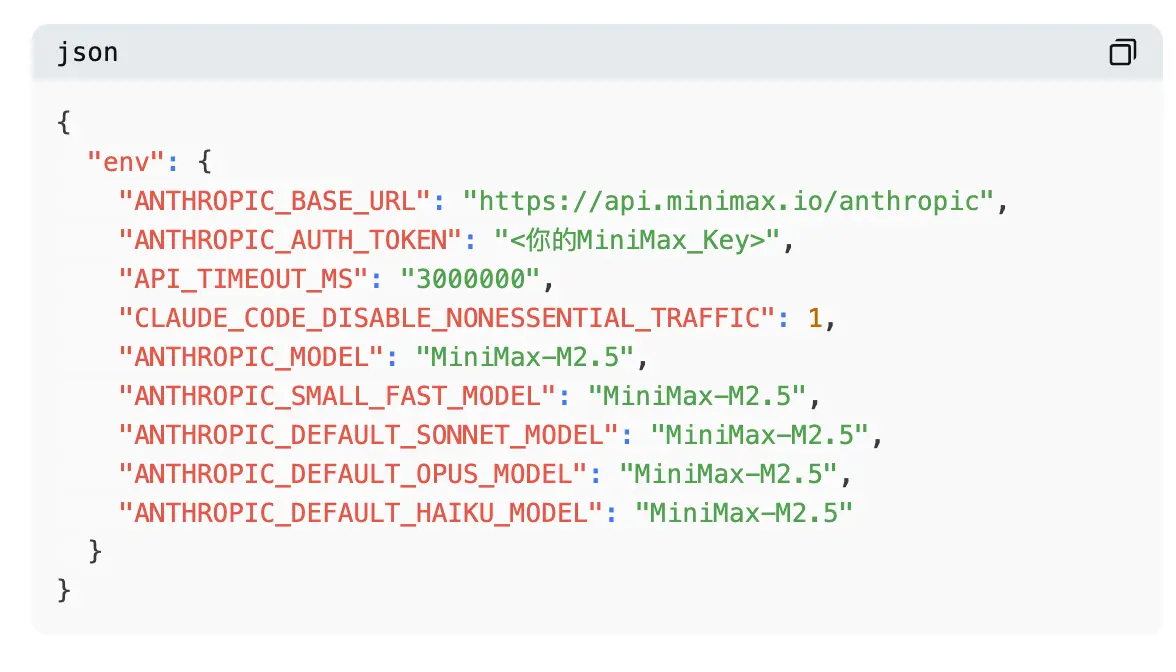
Save and exit (nano: Ctrl+O → Enter → Ctrl+X; Windows: save and close directly).
Add an extra file to skip login (super important! must-have if not buying Pro):
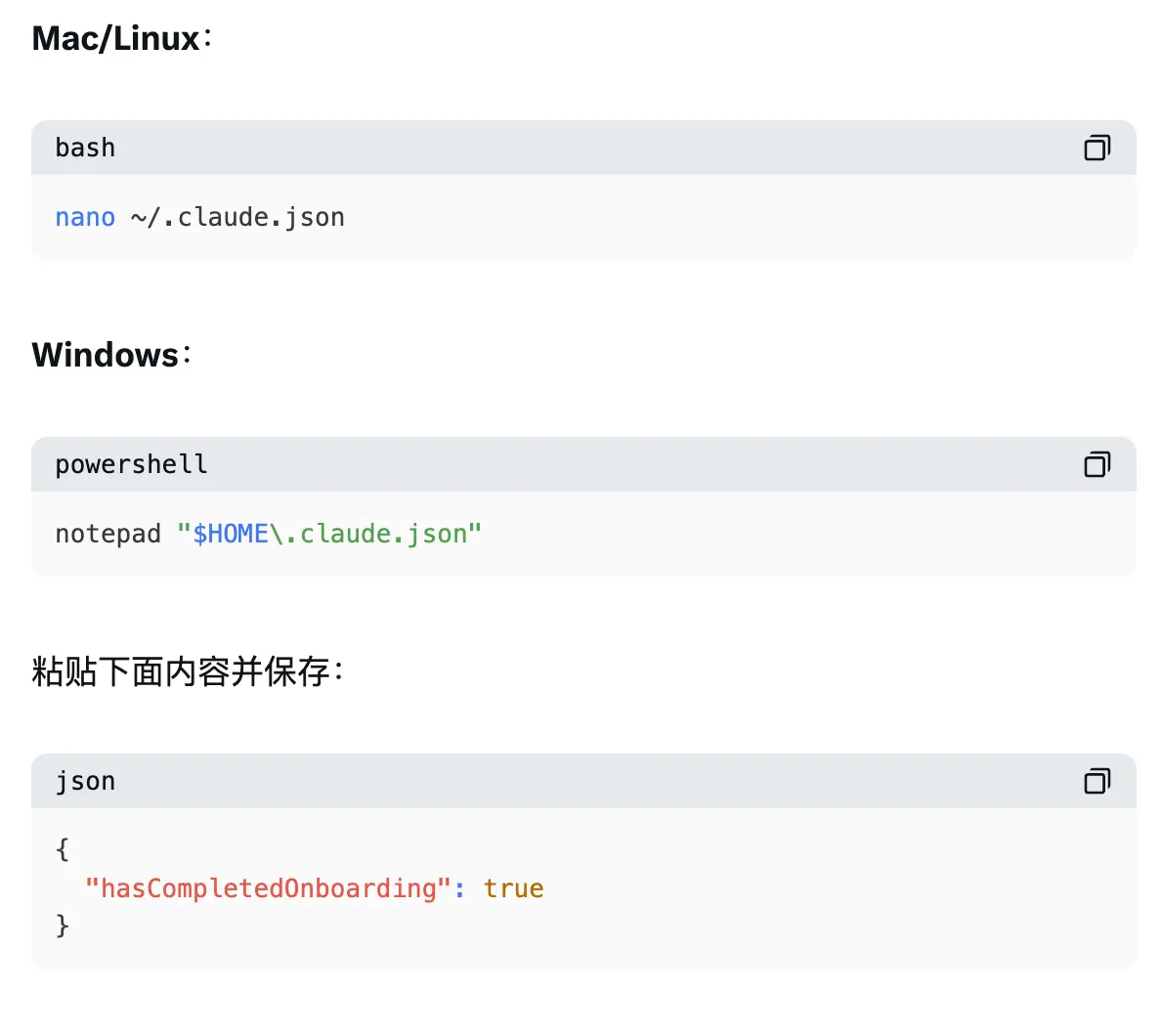
Step 4: Clear old Anthropic environment variables (to prevent conflicts!)
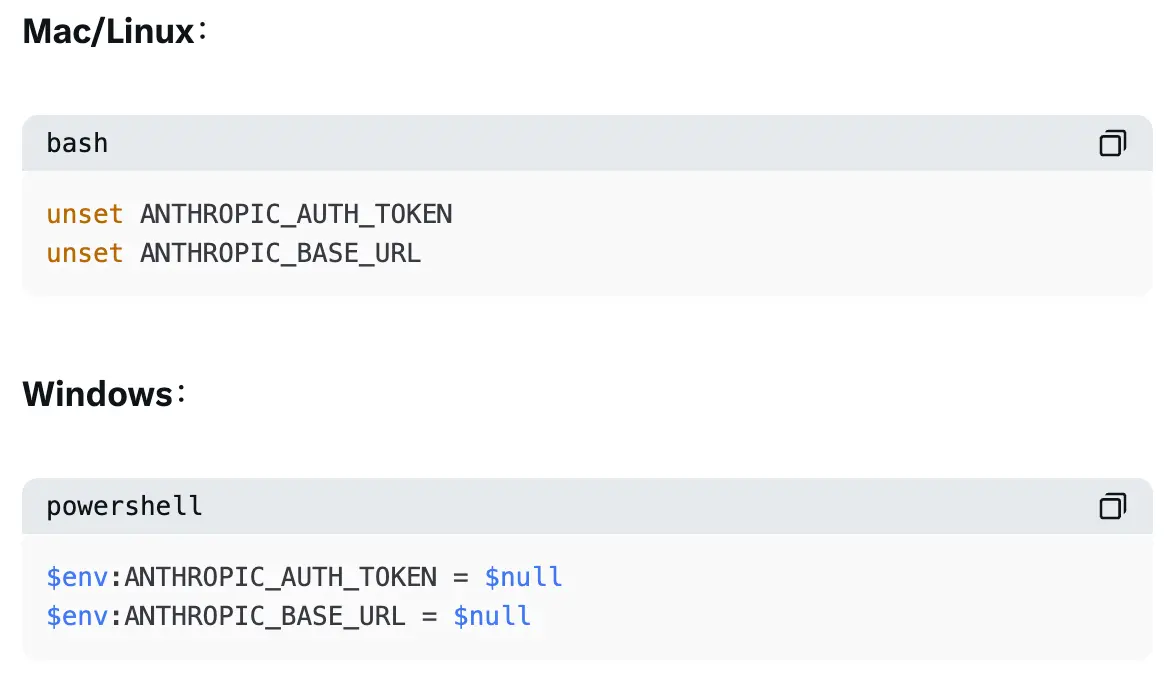
Step 5: Fully restart and launch
- Close all terminal windows
- Open a new terminal/PowerShell, navigate to your project folder
Type claude to start
- When prompted, select Trust This Folder
Very important: since we’ve configured MiniMax proxy + skip login file, this launch won’t show the official login window, it will go straight in!
Step 6: Verify
Type /model, you should see MiniMax-M2.5 selected. Then type something like hello, no errors, smooth!
If you’re in mainland China (IP in China), change ANTHROPIC_BASE_URL to:

Leave other settings unchanged.
Want to temporarily switch back to official Claude? Just type /model → select Default (Opus 4.6) (assuming you have Claude Code Key locally).
After setup: real feelings

Once done, Claude Code can directly display and call MiniMax.
M2.5 in Claude Code is super fast, cost-effective, and can easily beat Opus 4.6! Its coding capabilities are insane—I had it help me write automation scripts the same day, so satisfying.
The whole process feels like a battle of wits with MiniMax and Claude Code. MiniMax’s Coding Plan and membership are separate; Claude Code also promotes user memberships everywhere. But since I have the large-volume, unlimited MiniMax Coding Plan, I’ll keep freeloading—so worth it! Truly awesome! 😋
Disclaimer: The information on this page may come from third parties and does not represent the views or opinions of Gate. The content displayed on this page is for reference only and does not constitute any financial, investment, or legal advice. Gate does not guarantee the accuracy or completeness of the information and shall not be liable for any losses arising from the use of this information. Virtual asset investments carry high risks and are subject to significant price volatility. You may lose all of your invested principal. Please fully understand the relevant risks and make prudent decisions based on your own financial situation and risk tolerance. For details, please refer to
Disclaimer.


